


A consistent video setup for every coach, in one step
Open the team's shared drive and look for last February's slalom training. One coach saved it as SL_Feb12_Cam1. Another made a folder called Slalom Valley Cam. A coach who left two seasons ago filed theirs somewhere nobody can find.
Every coach names things their own way, and the system changes every time the staff does. Finding a run from last season means opening folders one by one.
A Team Setup File gives the whole team one consistent approach. The team decides once how it films, names and shares video. One coach exports that setup, every other coach imports it, and a couple of taps later they're all working the same way.
Jump to a section
- Decide once, and every coach works that way
- What goes in the file
- Every change, reviewed first
- When to send one
- One coach does the setup
- Export and import a file
Decide once, and every coach works that way
Most teams know how they want to work with video: what to call each camera, what to note on each run, who sees what. The hard part is getting every coach to do it, every season, as staff change.
When each coach sets up their own app, small differences add up. Pos 1 on one phone is Cam 1 on another. A property gets spelled two ways. One coach's video never reaches the others.
Decide once how the team works with video. Every coach starts that way.
With a Team Setup File, that decision lives in a file, not in one coach's head. Every coach starts from the same camera names, properties and sharing. Video from other coaches groups and filters like your own, and multi-cam runs come together because the cameras match.
Simple and fast. Exporting the file takes a few taps. Importing it shows each coach what will change, and one more tap applies it. No walkthrough, and no working through every setting.
What goes in the file
The coach building the file sets up their own app first, then saves it. A file can carry:
- Camera names. Pos 1 or Cam 1, Valley Cam or Valleycam. Pick one, and every coach uses it.
- Properties. Snow type, course setting, ski or equipment number, and whether each one is asked after every video, set for the whole session, or added later.
- Sharing. Who each coach's video goes to, and whether it uploads over Wi-Fi only or over mobile data too.
- Review settings. The overlay comparison type and the video quality for Protern Cloud.
- The team logo.
- Athletes without a Protern account. Off by default. Turn it on to send the whole list to every coach.
Sharing is the one most teams notice first. Out of the box, a new coach's video stays private and waits for Wi-Fi. Import the team's file, and their runs reach the rest of the staff from the side of the hill.
Every change, reviewed first
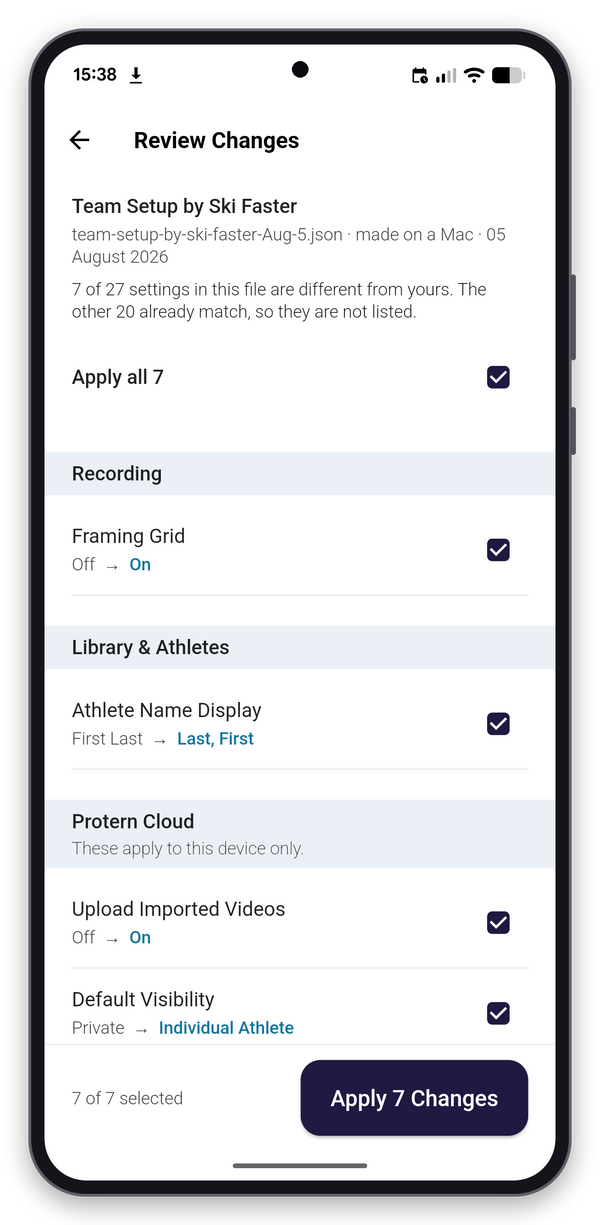
When a coach imports the file, Protern Video shows only what is different. Each row has the coach's current setting beside the file's, grouped the way Settings is. The top line says how many already match: 7 of 27 settings are different, the other 20 already match.
- Untick anything you want to keep. A coach who likes their own overlay can keep it and take the rest. The button counts what will change: Apply 7 Changes.
- Nothing changes until you confirm. Close the review and the app is exactly as it was.
- Nothing gets deleted. The file adds camera names and properties. Anything a coach made themselves stays.
After importing, each coach's app is theirs again. Nothing is locked, and the file doesn't keep checking for changes.
When to send one
At the start of the season. Agree how the team records video, build the file, and send it to every coach before the first day on snow. It's a good task for the fall.
When a new coach joins. They import the file and are set up like everyone else, without a walkthrough.
When the way you work changes. Add a new property or a new camera position, and send an updated file. Each coach takes the new changes and keeps their own tweaks.
Send it however your team already shares files: email, AirDrop, a shared drive.
One coach does the setup
Usually it's the coach most comfortable with technology, working with the head coach or program director on how the team films and tags video. They do the setup once. Nobody else has to.
That matters most for the coaches who would never open the settings. They import one file and get on with coaching.
It starts paying off at around three coaches. For a club rolling Protern Video out to every coach, or a federation whose staff changes each season, it keeps the whole library organized year after year, instead of spread across shared drives in a dozen different styles.
Export and import a file
You need to be signed in to Protern Video.
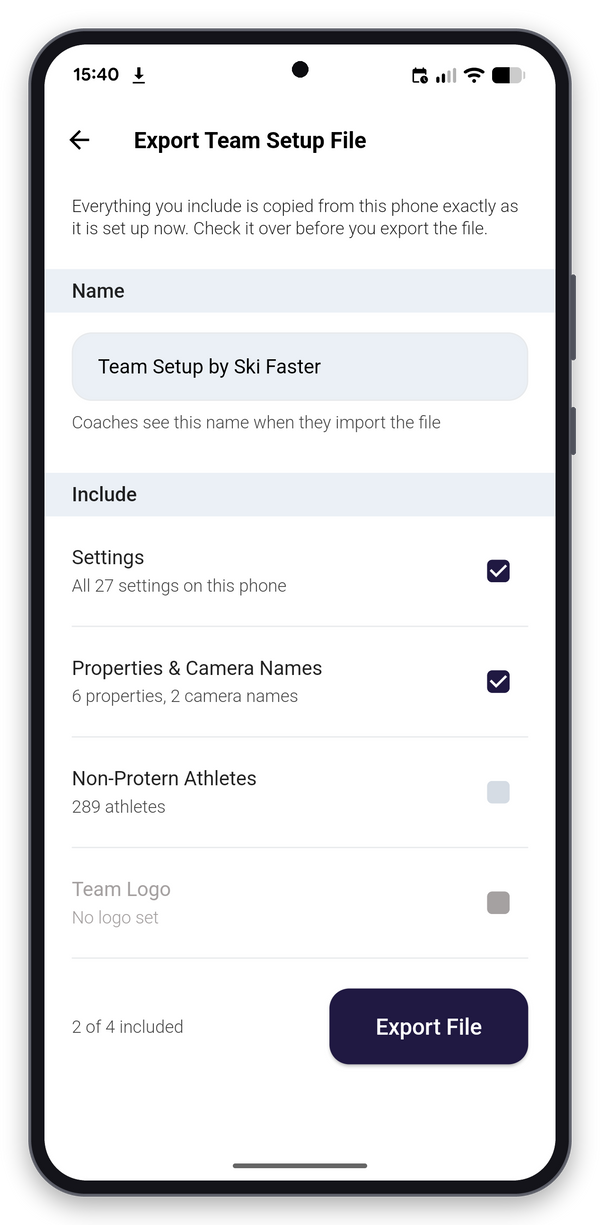
- To export one: set up your app the way the team works. In Settings, open Account, and under Team Setup, tap Export Team Setup File. Give it a name the coaches will recognize, tick what to include (settings, properties and camera names, athletes without a Protern account, the team logo), and tap Export File.
- To import one: in Settings, open Account, and under Team Setup, tap Import Team Setup File. Review the changes and tap Apply.
To share only properties, export them from User Properties instead.
More on Protern Video
For how Protern Video works across a staff of coaches, see Protern for teams and programs and the Protern Video page. For the full workflow from filming to review, see how Protern works.


