


Tag each training run as you film it
Midway through the morning, an athlete skis the run you have been working toward all week. That's it, exactly. Three runs later, a teammate shows the habit the two of you need to work on.
By the end of the session there are 60 videos on your phone. Finding those two means watching them all again.
Protern Video can now ask you about each video right after you film it. Tap Great or Needs work, and you are back to filming. That night, the runs worth watching are one filter away.
Get a quick tour
Jump to a section
- One tap after each run
- What coaches track
- The runs worth watching, the same night
- The run from two months ago
- Camera video, tagged as you import
- Three ways to use a property
- Set it up once
One tap after each run
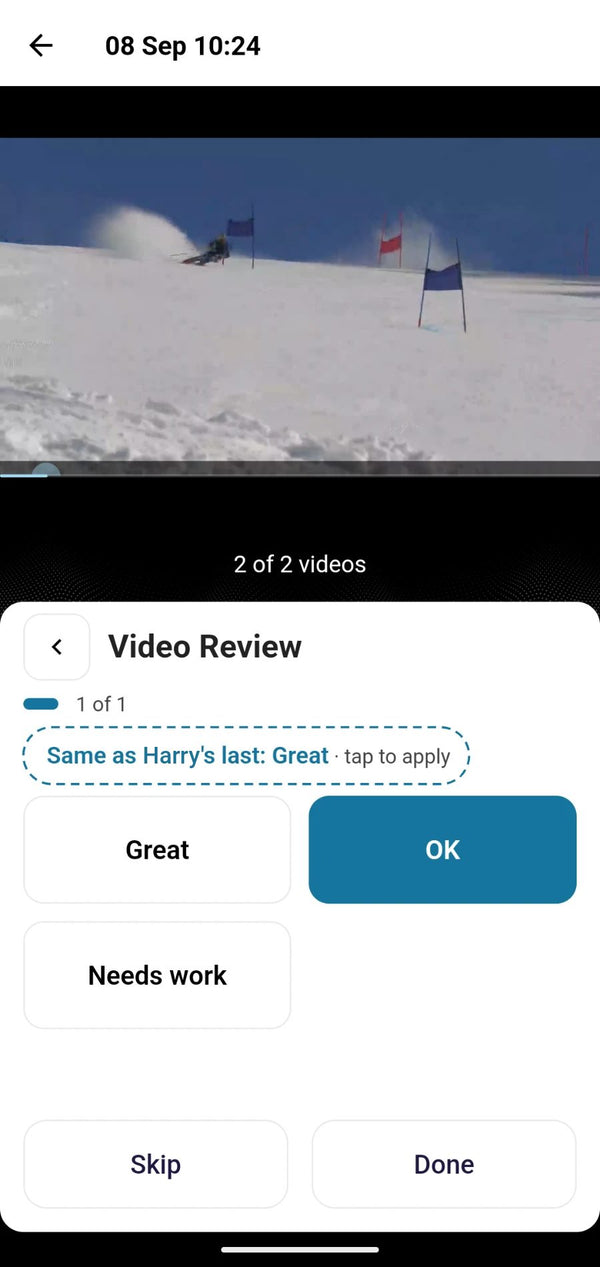
You choose the properties you want to track. After you film a run and name the athlete, a card appears for each one. Every answer is a big button you can hit with a glove on.
Tap an answer and the next card appears. After the last one, you are back on the camera.
- The last answer, ready. Protern Video offers the athlete's last answer, so a run that went like the one before takes one tap.
- Skip when you need to. Skip passes over one property. Close the card to go straight back to filming, and everything you entered is kept.
What coaches track
Start with one or two properties. Each one is another tap after every run, so keep the list short. Protern Video warns you when you ask for four or more.
Asked after each run:
- Video review: Great, OK, Needs work
- Outcome: Clean, Mistake, DNF
Set once for a whole session:
- Course feature: Flush, Hairpin, Breakover
- Training session: Starts, Gliding, Jumps
Freestyle coaches can rate each trick as it lands, with the same one-tap cards.
If you have no properties yet, Protern Video offers examples to start from.
The runs worth watching, the same night
Without a mark on each run, finding the good ones means watching every video again. Sometimes twice, because by the end of the first pass you have forgotten which run was the great one.
With properties, filter the evening review to every run marked Great, or every run that Needs work.
You start with the five videos that matter, not the 60 you filmed.
The run from two months ago
A file name only carries so much: a discipline, a hill, a date. Properties add what happened on the run.
When an athlete starts working on a skill, mark it. Two months later, filter to that skill and that athlete, and compare the first run with today's. It shows you how far the athlete has come, and it shows the athlete too.
Camera video, tagged as you import
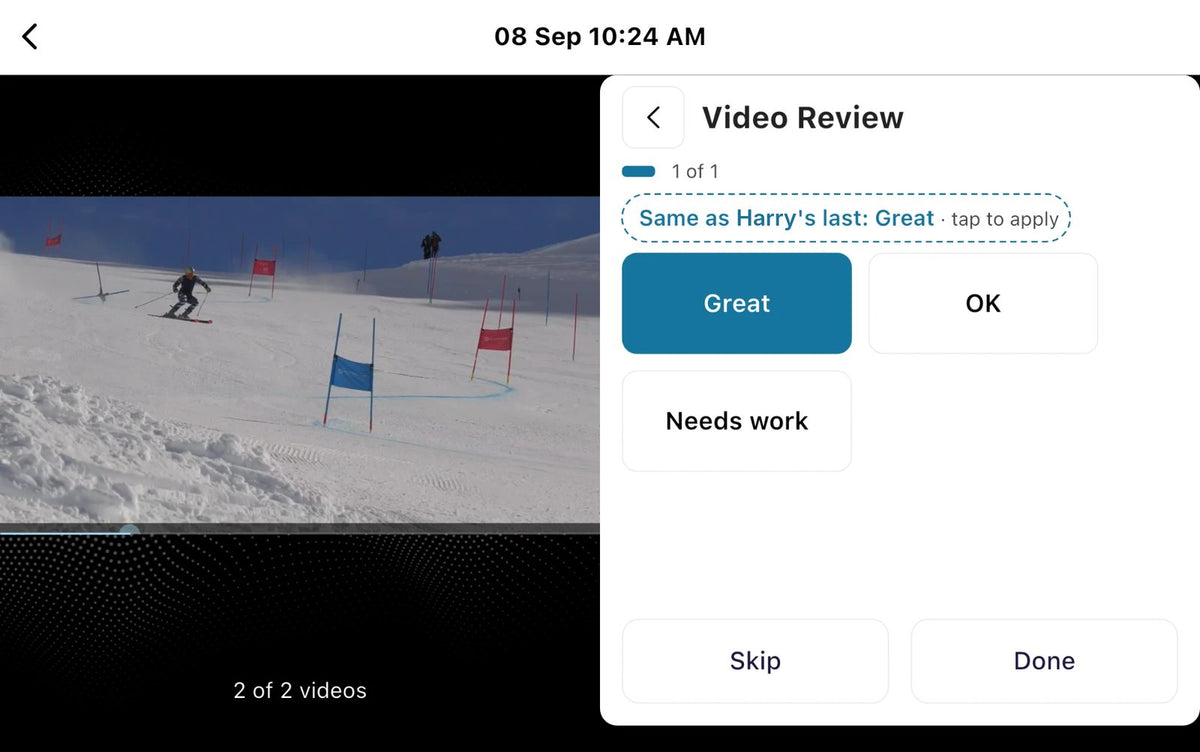
Video from a camera works the same way, after training. As you import, each video plays on one side with its properties on the other. Tap the answers and move to the next video.
Three ways to use a property
- Ask for each video. A card after each video, in the order you choose. For what changes from run to run: how the run went, a mistake, a trick.
- Set for every video. One value on every new video. For what stays the same all session: the course feature, the type of training.
- Add later. Nothing happens when a video is added. Fill it in from the gallery when you need it.
On the hill, you can change these from Before you record, for one session or as your default.
Set it up once
- In Settings, open Library & Athletes, then User Properties.
- Add a property, or start from one of the examples.
- Choose Ask for each video, Set for every video, or Add later.
One coach can set up the team's properties and share them. Export them from User Properties, or include them in a Team Setup File with the team's other settings. The other coaches import them in one step. Everyone tags the same way, so everyone can filter the same way.
More on Protern Video
For filming, sharing and review in one place, see the Protern Video page. For how a training day runs from filming to review, see fast and easy video workflows and how Protern works.


